
Setting Up Your Organization
Setting Up Your Organization
This article explains how to create and configure your organization in Motion Meetings 2.0. Your organization is the top-level container for all your meetings, participants, and settings.
What is an Organization?
An organization in Motion Meetings represents your company, association, or governing body. All meetings you create are linked to your organization, and your branding and default settings apply across all of them.
Creating Your Organization
If you are a first-time user, you will be prompted to create your organization after signing in for the first time.
- Sign in to Motion Meetings using your magic link.
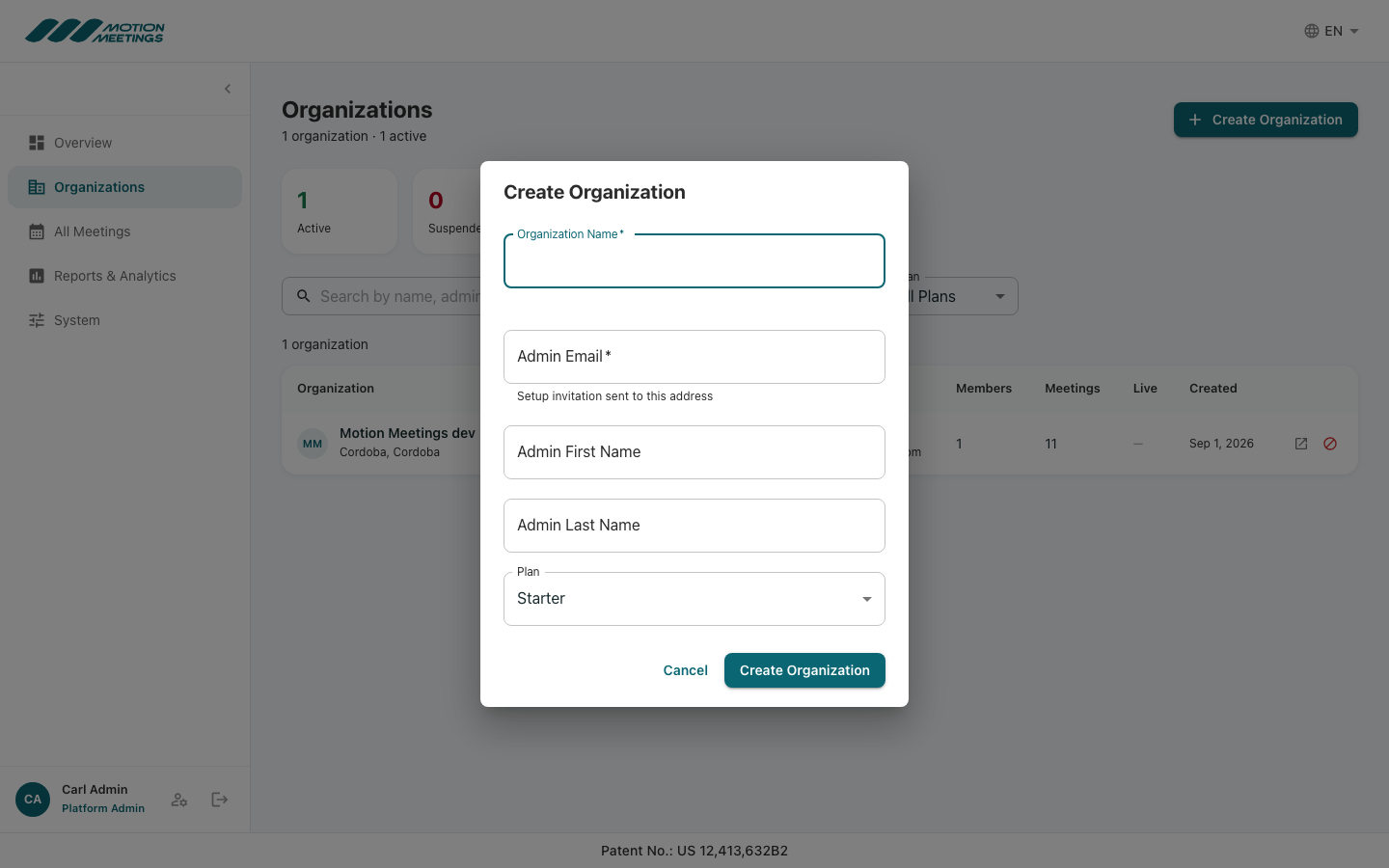
- On the welcome screen, click Create Organization.
- Enter your Organization Name — this will appear on all participant-facing screens and emails.
- Enter the Admin Email — the email address of the primary organization administrator.
- Enter the admin's first and last name.
- Click Save to finish creating your organization.
Configuring Organization Settings
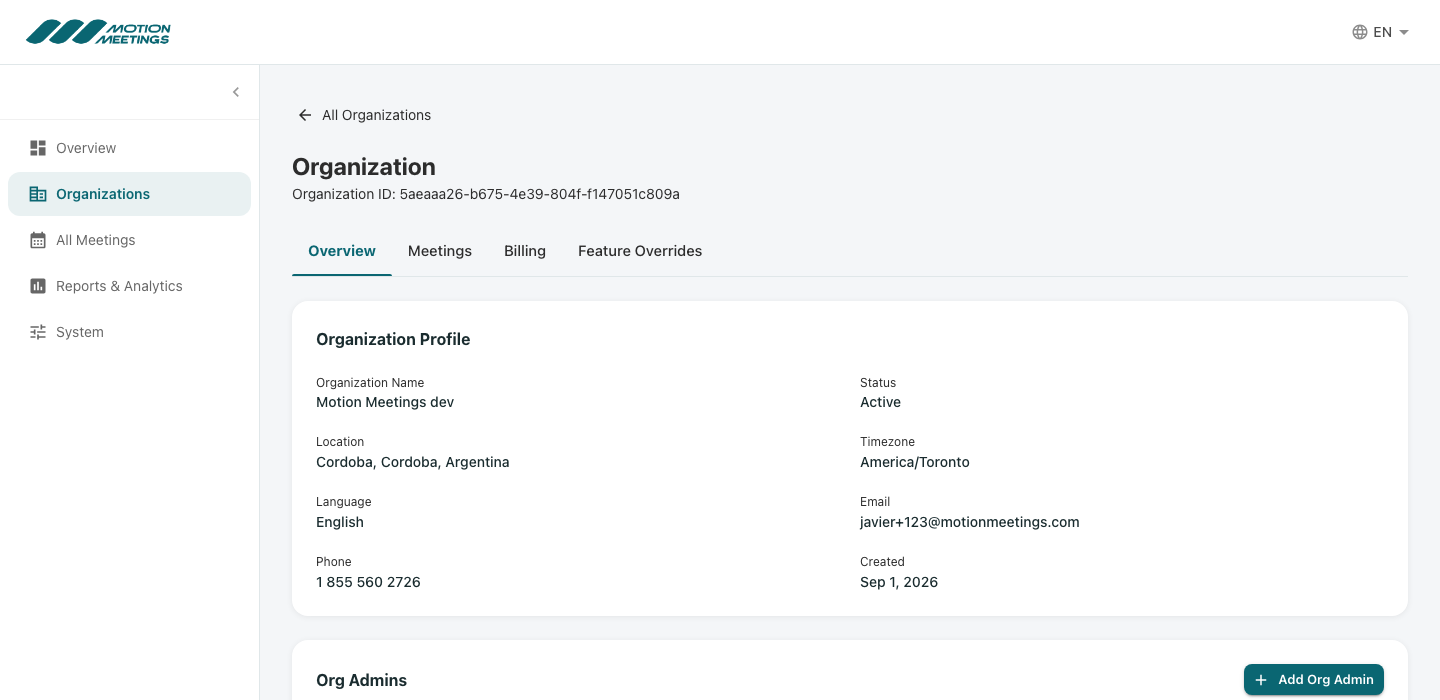
After creating your organization, you can update its details at any time from the organization settings page.
- From the main dashboard, click the organization name in the top navigation or go to Settings → Organization.
- Update any of the following fields:
- Organization Name — The display name shown to participants
- Logo — Appears in emails and the participant portal
- Default Time Zone — Pre-populates when you create a new meeting
- Default Language — The default language for new meetings (English or French)
- Click Save Changes.
💡 Tip
Your organization logo appears in the invitation emails sent to participants. Upload a high-resolution version for the best appearance on all screen sizes.
Managing Organization Members
You can invite additional administrators to your organization so that multiple people can create and manage meetings.
- Go to Settings → Members.
- Click Invite Member.
- Enter the person's email address and select their role: Admin or Viewer.
- Click Send Invitation. The person will receive an email with a magic link to accept the invitation.
📝 Note
Admin members can create and edit meetings. Viewer members can view meeting details and reports but cannot make changes.
Next Steps
Once your organization is configured, you are ready to create your first meeting. See Creating a Meeting for a full walkthrough of the meeting creation wizard.
Was this article helpful?