
Creating a Meeting
Creating a Meeting
This article walks you through the Motion Meetings meeting creation wizard. The steps shown depend on the type of meeting you are creating — the wizard adapts automatically.
Opening the Meeting Creation Wizard
- From your dashboard, click New Meeting.
- The wizard opens on Step 1. You can navigate between completed steps by clicking the step tabs at the top.
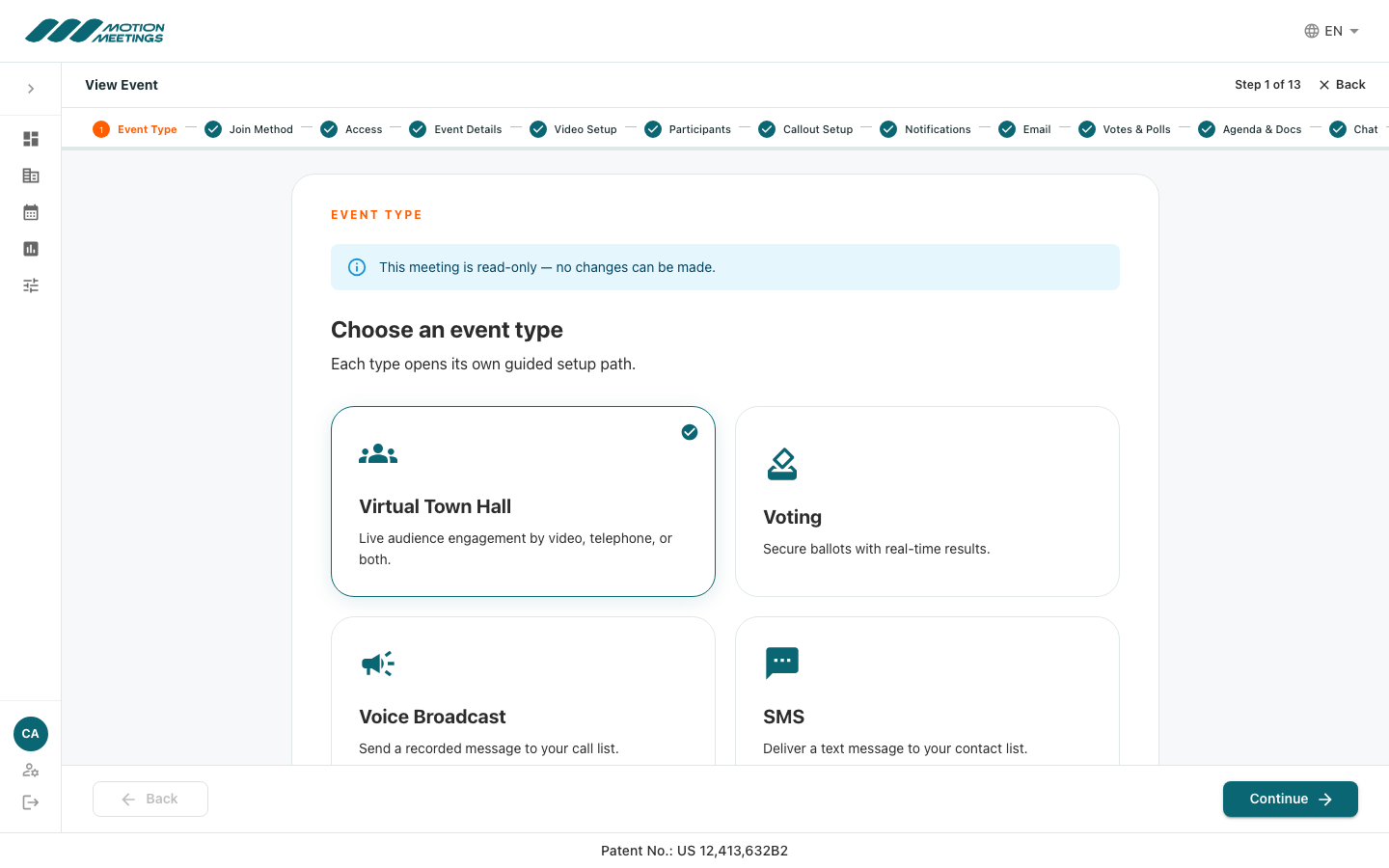
Step 1: Event Type
Select the type of meeting you are organizing:
- Virtual Town Hall — A live meeting with video, speakers, Q&A, voting, and audience participation. This is the most common type for AGMs and formal governance events.
- Voting — A formal ballot-only event. Participants receive a secure voting link and cast their ballots without a live video session. Use this for elections or referendums that do not require a live meeting.
- Voice Broadcast — A one-way outbound phone broadcast to a participant list. No video or email invitation.
- SMS — An outbound text message blast to a participant list.
Click Continue to proceed.
Step 2: Channel (Virtual Town Hall only)
Choose how participants will connect to the live meeting:
- Video Only — Participants join via their web browser with full video. Supports all video features including the livestream, Main Room Only mode, recording, and breakout rooms.
- Telephone Only — Participants dial in by phone. There is no video room for attendees. The livestream is always enabled on telephone meetings because the phone audio runs through it.
- Video and Telephone — Both web video and phone dial-in are available. Livestream is always on.
📝 Note
In-person attendance is not a channel option — it is handled per participant. Add physically present participants to your list with the InPersonAttendee role, and staff will check them in on their behalf during the meeting.
Step 3: Access
Set the access level for your meeting:
- Secure — Participants must have a personal invitation link to join. Only invited participants can access the meeting.
- Non-Secure — The meeting is open to anyone with the meeting link.
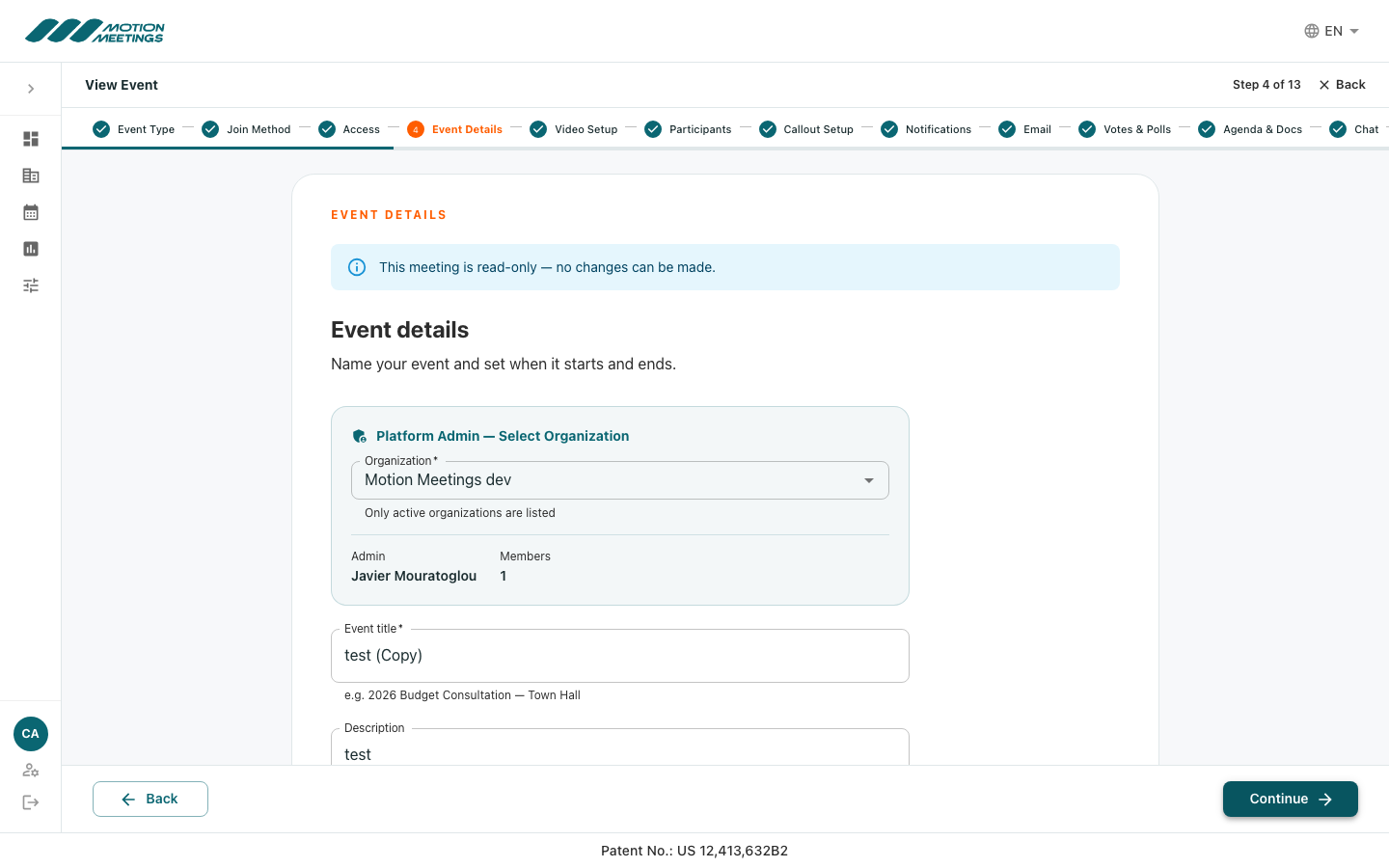
Step 4: Event Details
- Enter the Meeting Name — shown to all participants (e.g., "2025 Annual General Meeting").
- Set the Start Date and Time and End Date and Time.
- Select the Time Zone.
- Add an optional Description that will appear in participant invitation emails.
Step 5: Video Setup (video channels only)
This step appears only for Video Only and Video and Telephone meetings. Configure the video experience using the four toggles:
- Audio Only — When on, participants hear audio but see an audio-only overlay instead of the video grid. The livestream still runs underneath.
- Recording — Records the main room to the cloud. The recording is available post-meeting in your Reports section. Enabled by default.
- Streaming — Enables the livestream that standard Attendees watch. Automatically locked on for telephone channels. Cannot be on at the same time as Main Room Only.
- Main Room Only — Available on Video Only meetings. Removes the standard audience view: all participants — including attendees — join the live video room directly rather than watching a livestream. Cannot be combined with Streaming.
Step 6: Participants
Import and manage the participants for your meeting. See Managing Your Participant List for full details on CSV import and participant roles.
Step 7: Callout Setup (telephone channels only)
Configure automated phone callouts for participants joining by phone. Callouts dial participants automatically at the meeting start time, so they do not need to dial in manually.
Step 8: Notifications
Configure when and how participants are notified about the meeting:
- Set reminder schedules for upcoming meeting alerts.
- Configure notification channels (email, SMS).
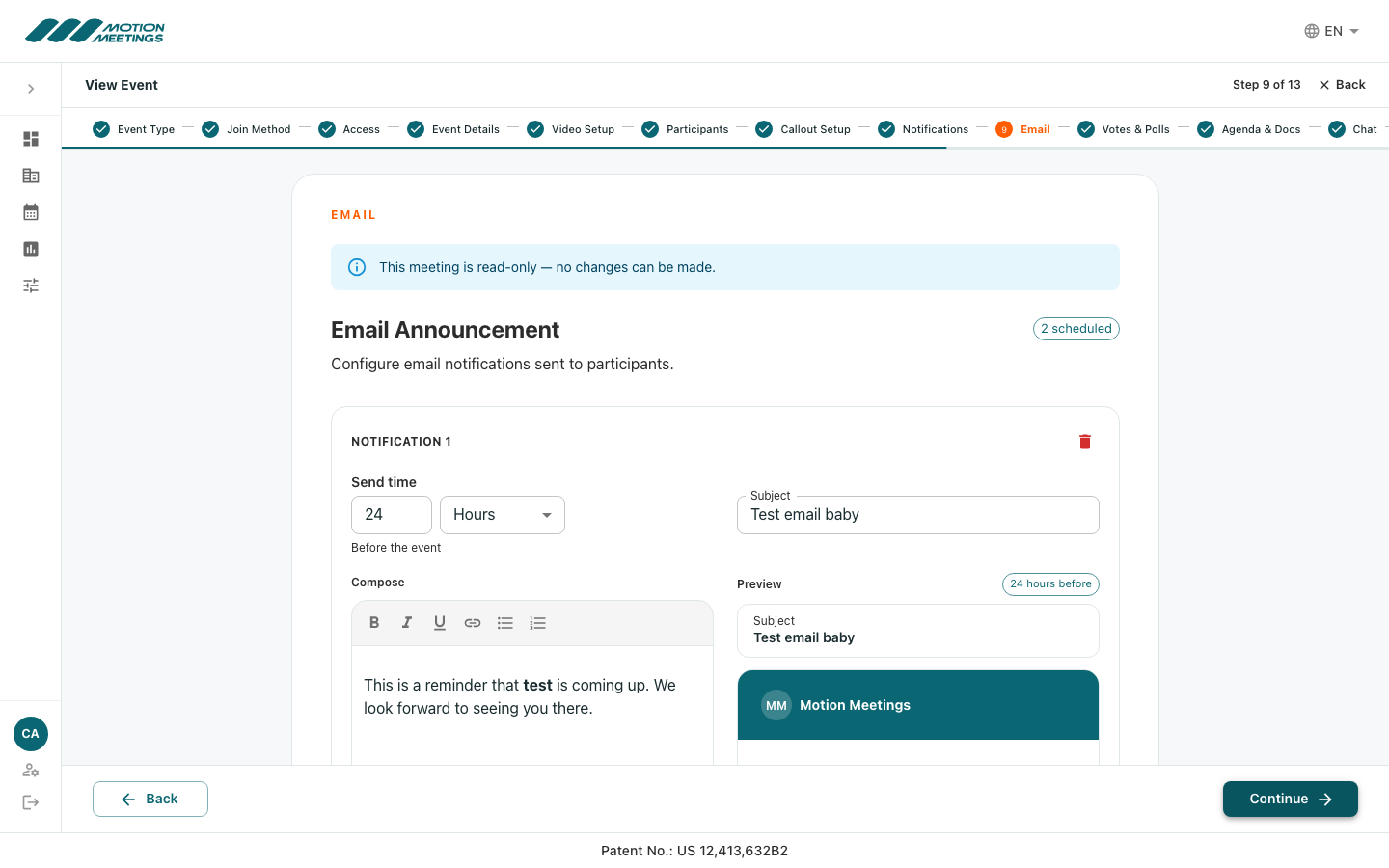
Step 9: Email
Edit the invitation email that will be sent to participants:
- Review the email subject and body. The body pre-populates with your meeting name, date, and join instructions.
- Customize the message as needed.
- Set the Send Date — when the invitation emails will be dispatched.
- Click Preview Email to review the invitation before sending.
Step 10: Votes & Polls
Create the votes and elections that will be conducted during the meeting. Supported vote types include Plurality, Single Transferable Vote (STV), Multi-position, and Weighted. See Setting Up Elections and Ballots for full details.
Step 11: Agenda & Docs
Upload the documents participants will be able to view during the meeting and build the meeting agenda. See Uploading Documents for full details.
Step 12: Chat (Virtual Town Hall only)
Configure in-meeting chat for attendees. Choose from four modes:
- Disabled — No chat panel for attendees.
- One-Way — Organizer and staff can send messages; attendees can only read.
- Two-Way — Attendees can reply to staff messages.
- Free for All — All participants can message freely.
Step 13: Review
The Review step shows a summary of all your meeting configuration. Review each section carefully.
- Check all details for accuracy.
- If you need to change anything, click the pencil icon next to that section to jump back to it.
- When everything looks correct, click Create Meeting.
✅ Your meeting is created
After creation, your meeting appears in your dashboard. Invitation emails are sent on the date you configured. You can edit the meeting at any time before it goes live.
Was this article helpful?