
Reports and Recordings
Reports and Recordings
This article explains how to access and use the Reports section after your meeting — including vote results, attendance summaries, Q&A transcripts, and meeting recordings.
Accessing Reports
- From your meeting dashboard, click the meeting name to open it.
- Click the Reports tab.
- Reports are available within a few minutes of the meeting ending.
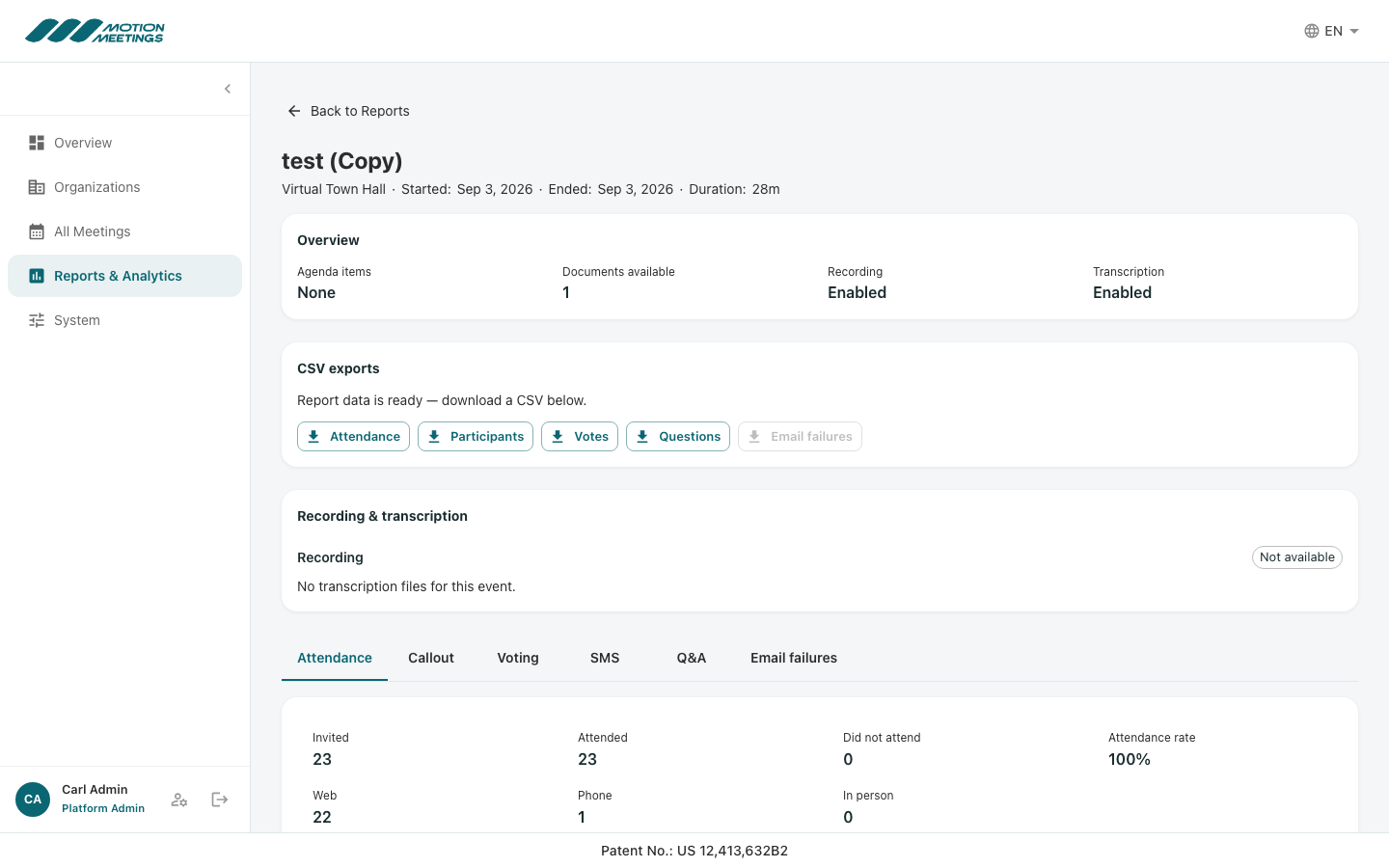
Attendance Report
The Attendance Report shows:
- Total registered participants vs. total who joined
- Join and leave times for each participant
- Connection method (web, phone, in-person)
- Total time in the meeting per participant
- Quorum log — timestamped record of when quorum was reached or lost
Click Download CSV to export the full attendance report.
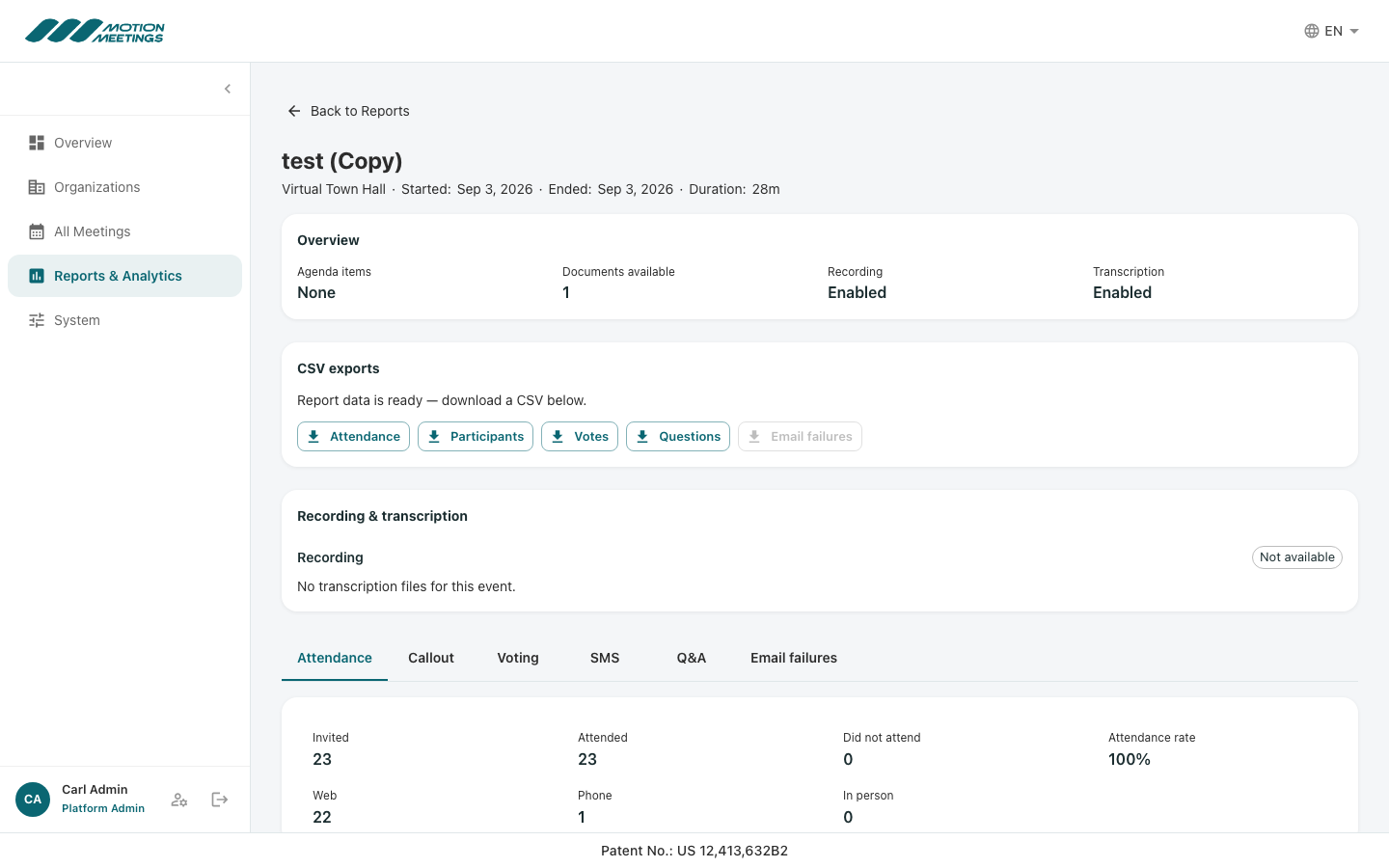
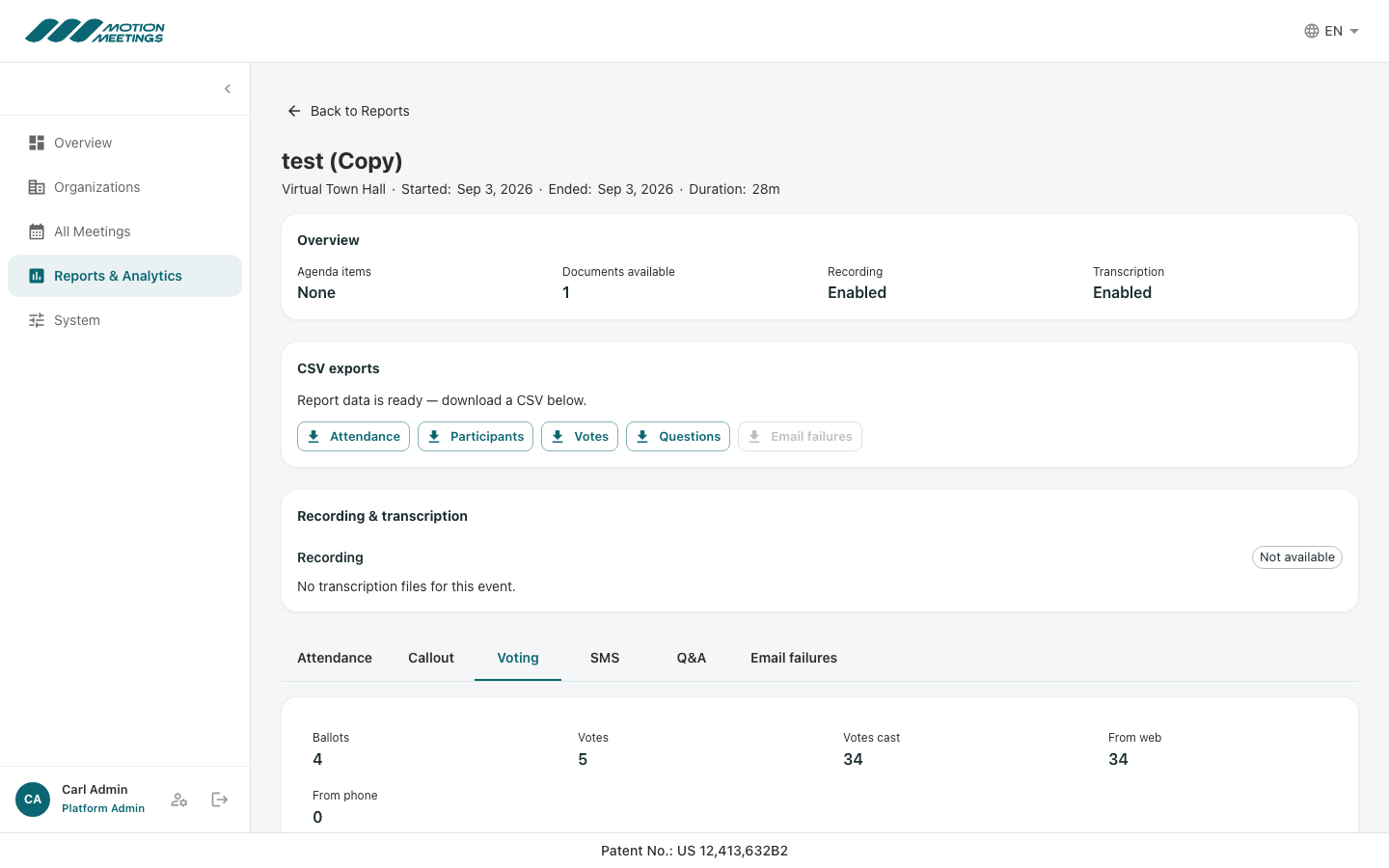
Vote Results
For each election or vote conducted in your meeting, the Reports section shows:
- Total ballots cast vs. eligible voters
- Results broken down per candidate or option
- Abstentions and spoiled ballots (if applicable)
- For STV elections: full transfer breakdown by round
Certifying Results
After reviewing the results, you must certify them to officially close the election. Certification confirms the results are accurate and final.
- Click on a vote in the Reports section.
- Review the results carefully.
- Click Certify Results.
- A certification timestamp is recorded. The election status changes to Certified.
📝 Note
Once you certify a vote, the results are locked and cannot be changed. Ensure all results look correct before certifying.
Q&A Transcript
The Q&A Transcript lists all questions submitted during the meeting, including rejected questions, along with the submitter name (unless submitted anonymously), submission time, screening status, and whether the question was answered.
Click Download PDF to export the Q&A transcript for your meeting minutes.
Meeting Recording
If recording was enabled for your meeting, the recording is processed and available in the Reports section within 30–60 minutes after the meeting ends.
- In the Reports section, click the Recording tab.
- Click Play to watch the recording in your browser.
- Click Download to save the recording as an MP4 file.
💡 Tip
Recordings are stored for 90 days by default. Download and archive your recording to your organization's storage if you need to retain it longer.
Exporting All Reports
To download a full package of all reports for your meeting:
- Click Export All Reports at the top of the Reports page.
- A ZIP file is prepared containing all available CSVs, PDFs, and the recording link.
- Click Download ZIP when it is ready.
Was this article helpful?