
Managing Your Participant List
Managing Your Participant List
This article explains how to import, configure, and manage participants for your Motion Meetings AGM. Participants are the people who will attend, vote, or present in your meeting.
Participant Roles
Each person in your meeting is assigned one of the following roles:
- Attendee — Standard voting participant who watches the livestream and votes
- Speaker — Trusted presenter with access to the private Speaker Room (green room). Speakers are eligible voters and can cast votes.
- Guest Speaker — External presenter invited for part of the meeting. Access to the Speaker Room only during their segment.
- Selector — The Q&A moderation role. A Selector both screens raw submissions (approve/reject) and queues approved questions for speakers. One person does both jobs.
- MainRoomAttendee — Available on Main Room Only meetings. Joins the live video room directly instead of watching a livestream.
- InPersonAttendee — Physically present participant checked in by staff on their behalf.
Importing Participants
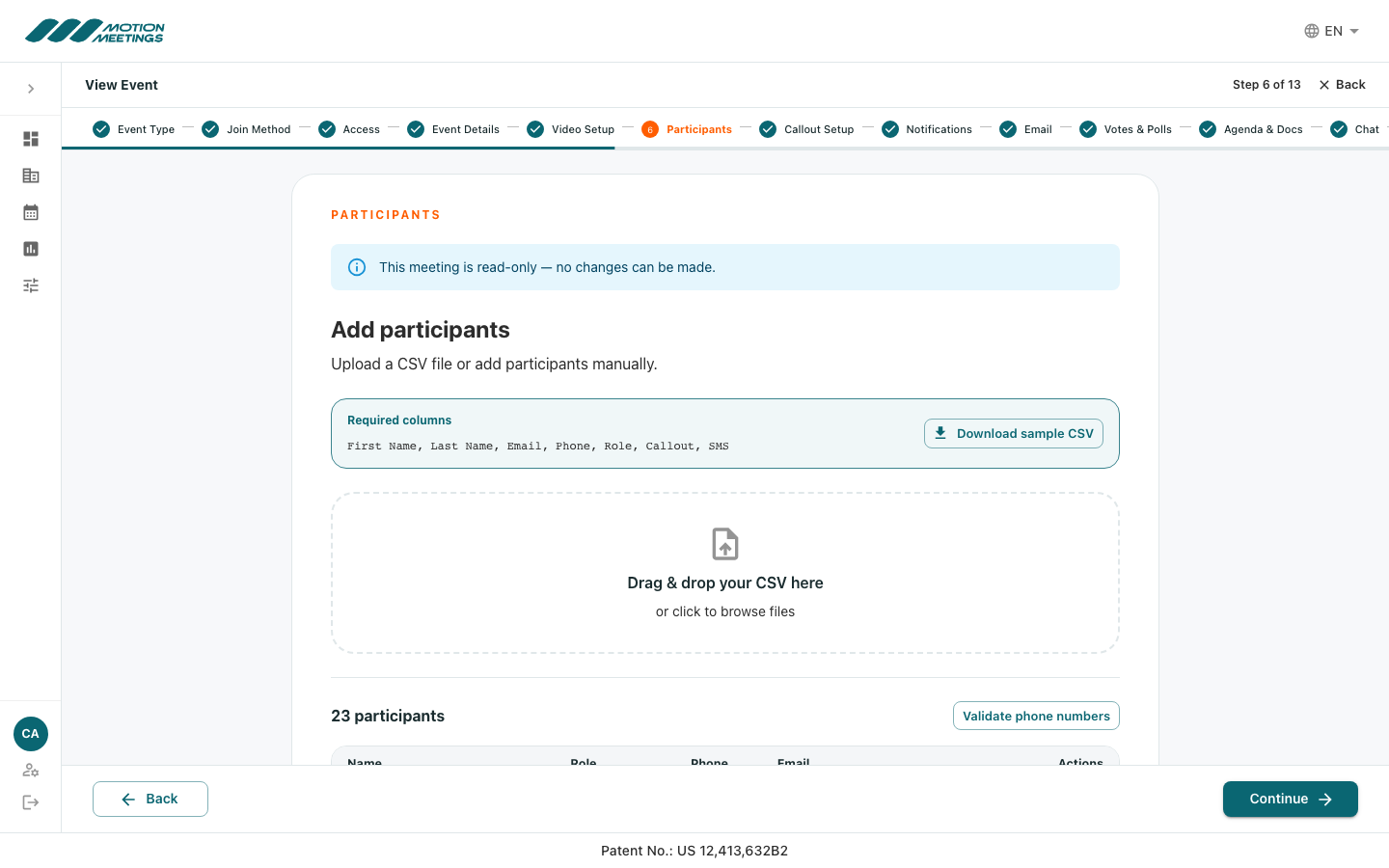
The fastest way to add participants is to import a spreadsheet. Motion Meetings accepts CSV files with the following columns:
- First Name (required)
- Last Name (required)
- Email (required for Web channel participants)
- Phone (required for phone or callout participants)
- Role (required) — one of: Attendee, Speaker, GuestSpeaker, Selector, MainRoomAttendee, InPersonAttendee
- Callout (optional) — whether this participant should receive an automated phone callout
- SMS (optional) — whether this participant should receive SMS notifications
- Vote Weight (optional) — a decimal number for weighted voting
- In the meeting wizard, navigate to Step 6 (Participants), or open the Participants tab from your meeting dashboard.
- Click Import CSV.
- Select your file or drag it into the upload area.
- Map the columns in your file to the required fields if the headers do not match exactly.
- Click Import.
The CSV import dialog showing a column mapping interface with source columns matched to First Name, Last Name, Email, Phone, Role, and Vote Weight fields
Screenshot💡 Tip
Download the sample CSV template from the Import dialog to ensure your file is formatted correctly before uploading.
Adding Participants Manually
To add individual participants without a CSV file:
- Click Add Participant.
- Fill in the participant's first name, last name, email address, and role.
- Optionally set a vote weight if using weighted voting.
- Click Save.
Editing and Removing Participants
- Find the participant in the list.
- Click the three-dot menu (⋯) next to their name.
- Select Edit to change their details, or Remove to delete them from the meeting.
Participant Status
Each participant has a status that updates in real time:
- Invited — Invitation email sent, not yet joined
- Joined — Currently in the meeting
- Left — Joined and then disconnected
- Not Sent — Invitation not yet dispatched
Resending Invitations
If a participant has not received their magic link or needs a new one:
- Find the participant in the list.
- Click the three-dot menu and select Resend Invitation.
- The participant receives a new magic link by email.
📝 Note
Each magic link is unique to the participant. Resending replaces the previous link — old links will no longer work.
Managing Participants During a Live Meeting
During the live meeting, you can view participant status in real time from the Participant List panel in the organizer dashboard. You can also mute participants, remove them from the meeting, or change their role on the fly.
Was this article helpful?